#commandcode#goat-plan#zed#tutorial#ai-agent#api
How to Connect CommandCode GOAT Plan to Zed IDE (API Guide)
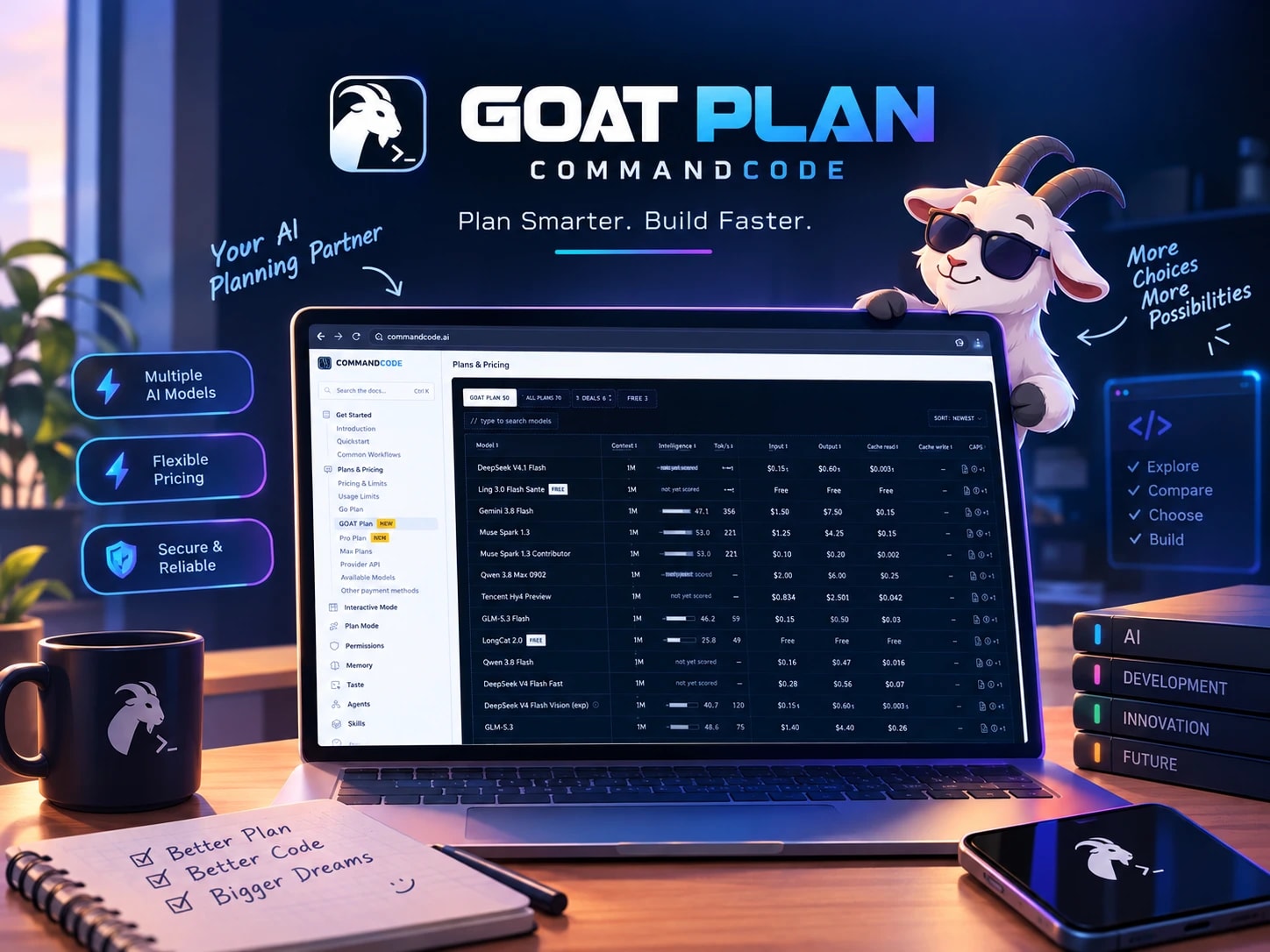
The $1 Go plan has no API access — the $10 GOAT plan does. Set up CommandCode in Zed, my agent prompt standard, and the image-attach catch.
#Table of Contents
I had been running Command Code on the $1 Go plan for months — cheap, decent credits, but with one wall I kept hitting: the Go plan has no API access. You could only use it through the Command Code CLI and harness. Every attempt to point another tool at it came back with the same refusal.
Then this landed in my account:
I took it. Not because I wanted another subscription — I already had one — but because several projects on my desk this month need a lot more AI-assisted debugging than the free tiers and the Go plan can absorb. More headroom, and finally a real API endpoint, was worth the test.
This article is the write-up: what GOAT actually unlocks, the exact steps to wire it into Zed IDE, the standard prompt I now use for every agent session in Zed, and the one gotcha that cost me twenty minutes — why the image attach button stays greyed out even after everything looks connected.
The Go plan is genuinely good value for what it is: $1/month, $10 of credits, credits that never expire. It stays on my account. But it has two structural limits I kept running into:
The endpoints — both live under one base URL:
If you already use Zed with any model active — Claude, GPT, Gemini, whatever — you do not have to edit
Why this works even with a small model: the prompt does the reasoning for it. The stable facts are stated outright (provider id, base URL, keychain rule), and the volatile ones are not memorised but looked up — the model is told exactly which two URLs to read, and which one wins when they disagree. That is the difference between a prompt that rots as the model list changes and one that stays correct: it asks the agent to verify, not to remember.
Before blaming Zed, confirm the key works. The model list endpoint is public, so start there, then send one tiny completion:
A
The prompt above configures the provider once. This one is for everyday work. Once the pipe works, the next problem is behavioural, not technical. A capable model with no brief wanders: it refactors files you did not ask about, claims success without running anything, and rewrites formatting across a diff you then have to review line by line.
So I keep one standard prompt — an agent contract — and apply it to every session.
Two ways to make it stick:
Here is the part that made me think the connection was broken. Everything was wired, text prompts worked perfectly — but the attach-image button never activated, and dragging a screenshot in did nothing.
Two different features share the word "vision", and they are not the same thing:
So in Zed, whether you can attach an image is decided by one flag per model: the  The fix is to tell Zed which models may receive an image. These are the entries I have flagged with
To enable one in the config file, add a
One correction I owe you, because I got this wrong the first time and only found out by testing it: the "text-only" models are not text-only over the API. I posted a 1×1 test image to
The turn dies. That part is survivable. The problem is what it leaves behind: the thread is poisoned. Every message you send afterwards in that same thread fails instantly with
Effective maths: $10 buys $70 of listed usage, so a heavy debugging week costs a fraction of what the same tokens would cost at list price on a direct provider. The Go plan stays because its credits never expire and it still covers CLI-only work.
This is the setup write-up, not the verdict. I have been on GOAT for a matter of hours, and first impressions are not a review — the numbers that matter only show up with mileage: how far $70 of credits actually stretches across a real working week, where the per-5-hour and weekly caps bite, which models are worth switching between per task, and whether the latency edge survives a busy weekday.
So it becomes my primary model for the next week, and I will write the follow-up with actual figures: cost per working day, latency notes, the model shortlist I settle on, and a straight answer on whether $10/month is worth it for the way I work. That one will land on this feed.
Tip
GOAT is $10/month for $70 in usage. As a thank-you for being a loyal Go subscriber, upgrade now and get $5 off your first month.
Why I Moved From the $1 Go Plan to GOAT
- No Provider API. Documented outright — every plan except the Go plan has API access. Calling the API on Go returns
403 upgrade_required. - The only way around it was a detour. To use Go-plan models anywhere outside the Command Code CLI, I had to route them through 9Router as a local gateway. It worked, but every request paid a latency tax — the extra hop was noticeable on long agent turns, and the worst of it landed exactly when I needed speed.
- Not enough ceiling for heavy weeks. When I am debugging a rendering bug across three services, the per-window allowance runs out at the worst possible moment.
What the GOAT Plan Actually Gives You
| Attribute | GOAT |
|---|---|
| Monthly price | $10 (first month $5 with the loyalty offer) |
| Credits included | $70 of usage — a 7× multiplier |
| Usage limits | $14 / 5 hours · $35 / week · $70 / month |
| Models | 30+ open and closed models, switchable |
| Provider API | ✅ OpenAI Chat Completions and Anthropic Messages |
| Credits expiry | Extra top-up credits roll over and never expire |
| Endpoint | Format |
|---|---|
POST /provider/v1/chat/completions | OpenAI Chat Completions |
POST /provider/v1/messages | Anthropic Messages |
GET /provider/v1/models | Model list |
Info
Model IDs follow a
provider/model convention for open models — for example deepseek/deepseek-v4-flash, zai-org/GLM-5.2, Qwen/Qwen3.8-Max — while OpenAI and Claude models use a flat ID like gpt-5.6-sol or claude-sonnet-5. Run GET /provider/v1/models to get the live, authoritative list instead of guessing.Prerequisites
- Command Code account with the GOAT plan active
- A Command Code API key (Studio → API keys). The key format starts with
user_... - Zed installed, with the Agent panel available
- Any OpenAI-compatible client for the smoke test (optional, but I recommend it)
Step-by-Step: GOAT Into Zed
1
Open the Command Code Studio, go to API keys, and create one. The same key authenticates the CLI and the API, so if you already use 
cmd, you can reuse it. Copy it — you will paste it into Zed, not into a config file.Zoom
2
In Zed, open the Command Palette and run 
agent: open settings. Go to the LLM Providers section, find Add Provider, and choose the OpenAI-compatible option. Fill in:- Provider name —
commandcode(this becomes the internal provider ID) - API URL —
https://api.commandcode.ai/provider/v1 - Model ID — e.g.
deepseek/deepseek-v4-flash - Context window — e.g.
1000000
Zoom
3
Still in the same provider card, paste your API key. Zed stores provider keys in the system keychain, deliberately not in 
settings.json — so never commit the key anywhere.If you prefer environment variables, Zed also reads one derived from the provider ID: for commandcode that is COMMANDCODE_API_KEY. An environment variable takes precedence over the keychain value, and you need to restart Zed for it to be picked up.Zoom
4
Repeat the model ID / context window fields for each model you plan to use. If you would rather edit the file directly, run
zed: open settings file and merge this block — it registers 40+ GOAT models in one go:{
"language_models": {
"openai_compatible": {
"commandcode": {
"api_url": "https://api.commandcode.ai/provider/v1",
"available_models": [
{ "name": "deepseek/deepseek-v4-flash", "display_name": "DeepSeek V4 Flash (GOAT)", "max_tokens": 1000000 },
{ "name": "deepseek/deepseek-v4-pro", "display_name": "DeepSeek V4 Pro (GOAT)", "max_tokens": 1000000 },
{ "name": "gpt-5.6-sol", "display_name": "GPT-5.6 Sol (GOAT)", "max_tokens": 1050000 },
{ "name": "zai-org/GLM-5.2", "display_name": "GLM-5.2 (GOAT)", "max_tokens": 1000000 },
{ "name": "Qwen/Qwen3.8-Max", "display_name": "Qwen 3.8 Max (GOAT)", "max_tokens": 1000000 },
{ "name": "moonshotai/Kimi-K3", "display_name": "Kimi K3 (GOAT)", "max_tokens": 1000000 },
{ "name": "xai/grok-4.6", "display_name": "Grok 4.6 (GOAT)", "max_tokens": 500000 },
{ "name": "google/gemini-3.8-flash", "display_name": "Gemini 3.8 Flash (GOAT)", "max_tokens": 1000000 }
]
}
}
}
}Warning
max_tokens is the context window, and Zed requires it — a model entry without it will not load. The numbers above come from Command Code's own model list; check it if a model is updated.5
Reload or restart Zed so it re-reads the provider list, then open the Agent panel and select your model from the picker. You should see every entry you registered, prefixed with the provider.

Zoom
Zoom
Faster Path: Let the AI in Zed Do the Setup
settings.json by hand. Paste the prompt below into the Agent panel and your current model will do the configuration for you: check the current model list against the official sources, back up the settings file, merge the provider block, keep your existing providers intact, and tell you what is left to do.
Tip
This is the point of writing it as a prompt rather than a walkthrough: the block names every fact the model would otherwise have to guess (provider id, base URL, the keychain rule, which models accept images), and it also points the model at the live sources for the parts that change — the model list and the plan docs. So the IDs it writes are the ones that exist today, not the ones I happened to hardcode while writing this article.
You are running inside my Zed IDE. Configure CommandCode's GOAT plan for me —
do it, don't just explain it.

FACTS (use exactly these; do not invent any)
- Provider type : OpenAI-compatible  -> settings key path: language_models.openai_compatible
- Provider id   : commandcode
- Base URL      : https://api.commandcode.ai/provider/v1   (Zed appends /chat/completions)
- Auth          : header "Authorization: Bearer <key>". The key is stored by Zed in the
                  OS keychain. It must NEVER be written into settings.json.
                  Env-var alternative: COMMANDCODE_API_KEY (then restart Zed).
- LIVE SOURCES (authoritative — check these BEFORE you write any model ID):
  * https://api.commandcode.ai/provider/v1/models   (live model list, public, no auth)
  * https://commandcode.ai/docs/plans/goat          (GOAT plan docs & what it includes)
  If a live source disagrees with the block below, THE LIVE SOURCE WINS. Treat that
  block as a starting point, not as the truth.
- Model IDs are real — copy them verbatim from the live list. Do not rename, shorten,
  or "fix" them.

DO THIS
1. First, establish the current truth — do not skip this:
   - Fetch https://api.commandcode.ai/provider/v1/models (no auth needed).
   - Fetch https://commandcode.ai/docs/plans/goat.
   - Compare that live list against the block below, then tell me in one short list
     which models are new, which are gone, and which changed name or context length.
     From here on, use the LIVE list for everything you write.
2. Run `zed: open settings file` to open my user settings.json.
3. Back it up first: copy it to settings.json.bak-<YYYYMMDD>.
4. Merge the block below into it, adjusted to match the live list:
   - If language_models.openai_compatible does not exist yet, create it.
   - If it already exists, ADD the "commandcode" entry next to the providers
     already there. Do not replace, reorder, or delete existing providers.
   - Preserve every other setting in the file, including comments.
5. Keep the file valid JSONC: no trailing commas, no duplicate keys. My settings
   file may contain // comments — leave them alone.
6. Do NOT read, print, or store my API key. When you are finished, tell me to run
   `agent: open settings` -> LLM Providers -> commandcode and paste the key from
   commandcode.ai (Studio -> API keys) — or to set COMMANDCODE_API_KEY and restart Zed.
7. Verify your own work: re-read the merged file and confirm the provider entry is
   present, the JSON parses, and none of my previous settings were lost. Report the
   file path, which models you added or removed relative to the block, and the exact
   next step for me.

BLOCK TO MERGE
{
  "language_models": {
    "openai_compatible": {
      "commandcode": {
        "api_url": "https://api.commandcode.ai/provider/v1",
        "available_models": [
          { "name": "deepseek/deepseek-v4-flash", "display_name": "DeepSeek V4 Flash (GOAT)", "max_tokens": 1000000 },
          { "name": "deepseek/deepseek-v4-pro", "display_name": "DeepSeek V4 Pro (GOAT)", "max_tokens": 1000000 },
          { "name": "gpt-5.6-sol", "display_name": "GPT-5.6 Sol (GOAT, vision)", "max_tokens": 1050000, "capabilities": { "tools": true, "images": true, "parallel_tool_calls": false, "prompt_cache_key": false, "interleaved_reasoning": false } },
          { "name": "gpt-5.6-luna", "display_name": "GPT-5.6 Luna (GOAT, vision)", "max_tokens": 1050000, "capabilities": { "tools": true, "images": true, "parallel_tool_calls": false, "prompt_cache_key": false, "interleaved_reasoning": false } },
          { "name": "google/gemini-3.8-flash", "display_name": "Gemini 3.8 Flash (GOAT, vision)", "max_tokens": 1000000, "capabilities": { "tools": true, "images": true, "parallel_tool_calls": false, "prompt_cache_key": false, "interleaved_reasoning": false } },
          { "name": "moonshotai/Kimi-K3", "display_name": "Kimi K3 (GOAT, vision)", "max_tokens": 1000000, "capabilities": { "tools": true, "images": true, "parallel_tool_calls": false, "prompt_cache_key": false, "interleaved_reasoning": false } },
          { "name": "MiniMaxAI/MiniMax-M3", "display_name": "MiniMax M3 (GOAT, vision)", "max_tokens": 1000000, "capabilities": { "tools": true, "images": true, "parallel_tool_calls": false, "prompt_cache_key": false, "interleaved_reasoning": false } },
          { "name": "xai/grok-4.6", "display_name": "Grok 4.6 (GOAT, vision)", "max_tokens": 500000, "capabilities": { "tools": true, "images": true, "parallel_tool_calls": false, "prompt_cache_key": false, "interleaved_reasoning": false } },
          { "name": "zai-org/GLM-5.2", "display_name": "GLM-5.2 (GOAT)", "max_tokens": 1000000 },
          { "name": "Qwen/Qwen3.8-Max", "display_name": "Qwen 3.8 Max (GOAT)", "max_tokens": 1000000 },
          { "name": "xiaomi/mimo-v2.5", "display_name": "MiMo V2.5 (GOAT)", "max_tokens": 1000000 },
          { "name": "tencent/hy3-paid", "display_name": "Tencent Hy3 (GOAT)", "max_tokens": 262144 }
        ]
      }
    }
  }
}

RULES
- Never put the API key in settings.json.
- Never touch providers or settings you did not add.
- Never invent a model ID. If it is not in the live list, it does not exist — say so
  instead of guessing.
- Take a model's context length from the live list when it provides one; otherwise
  keep the value from the block below.
- Models labelled "vision" get capabilities.images = true; leave text-only models without it.
- If anything is ambiguous, ask me one precise question instead of guessing.
Warning
Review the diff before you accept it. The prompt tells the agent to back up
settings.json and to report what it changed — check that both actually happened. And never let an agent paste your API key into a file you commit: the key belongs in the keychain, not in your dotfiles.Smoke Test: Verify the Endpoint (and the PowerShell Trap)
curl -s https://api.commandcode.ai/provider/v1/chat/completions \
  -H "Authorization: Bearer <YOUR_CMD_API_KEY>" \
  -H "Content-Type: application/json" \
  -d '{"model":"deepseek/deepseek-v4-flash","messages":[{"role":"user","content":"ping"}]}'
Warning
On Windows PowerShell,
curl is an alias for Invoke-WebRequest — the command above will fail with a confusing header-conversion error like Cannot convert ... to type System.Collections.IDictionary. Use curl.exe explicitly (Windows 10+ ships it), or use the native Invoke-RestMethod ... -Headers @{ Authorization = "Bearer <YOUR_KEY>" }. Also drop any < > placeholder brackets around the key — those are documentation notation, not part of the value.401 authentication_error means the key is wrong or not for this account. A 403 upgrade_required means you are still on the Go plan — that specific error is the Go-plan wall, not a bad key.
After Setup: The Prompt Standard for Daily Agent Sessions
You are my coding agent inside Zed.

Operating rules
1. Read before you write. Open and read the relevant file(s) before proposing any change.
2. Smallest correct diff. Change only what the task requires. No drive-by refactors,
   no reformatting, no touching unrelated files.
3. Match the codebase. Follow existing naming, structure and dependency choices.
   Ask before adding any new dependency.
4. Plan multi-file work first. List the files you will touch, then execute.
5. Verify, do not assume. After editing, run the project's lint/test/build command
   and show the exact command plus its result.
6. Report failures honestly. If something fails or you skipped a step, say so and
   paste the output. Never claim success without evidence.
7. Stay in scope. If you spot an unrelated bug, mention it. Do not fix it unless asked.
8. Ask when blocked. One precise question beats a confident guess.

Output rules
- Keep answers short. No filler preamble.
- Reference files by relative path so I can click through.
- Finish with: what changed, which files, what you tested (or why you could not).- Project-level — save it as
AGENTS.mdat the repository root. Zed reads it as always-on instruction for that project, so every new thread inherits it. - Per-session — paste it as the first message when you want it for one thread only.
Task:       <one sentence, one outcome>
Scope:      <files or folders you are allowed to touch>
Done when:  <command to run + expected result>
Constraints: <what must not change>
Tip
The order matters: choose the model first, then the prompt, then the task. If you paste a task and only then switch models mid-thread, you lose the cache and the model restarts without the context you built up.
The Catch: Why You Cannot Attach a Screenshot
| Where | How images work |
|---|---|
| Command Code CLI | "Every model has vision." If your model cannot see, the CLI calls a VISION tool — a side-call to a cheap vision model that transcribes the image to text, then carries on. |
| Provider API (what Zed uses) | No fallback flag — but no gate either. I sent one test image to deepseek/deepseek-v4-flash, deepseek/deepseek-v4.1-flash and google/gemini-3.8-flash, and all three read it back correctly. Command Code does the vision work server-side; the API does not reject images per model. |
images capability. For OpenAI-compatible providers this defaults to false, which is exactly why the button stays disabled — Zed is not letting you attach something the model cannot accept.
Zoom
images: true:
| Model ID | Context | Notes |
|---|---|---|
google/gemini-3.8-flash | 1M | Best default for screenshot work |
google/gemini-3.7-flash | 1M | Previous Flash, still strong |
gpt-5.6-sol / gpt-5.6-luna | 1.1M | OpenAI frontier + cost-optimised |
xai/grok-4.5 / xai/grok-4.6 | 500K | Strong on STEM and UI reasoning |
deepseek/deepseek-v4-flash-vision-exp | 1M | Explicit vision build of V4 Flash |
deepseek/deepseek-v4.1-flash | 1M | V4.1 reasoning with vision |
Qwen/Qwen3.8-27B | 262K | Compact vision-language coder |
moonshotai/Kimi-K3 | 1M | Long-horizon coding with vision |
moonshotai/Kimi-K2.7-Code | 256K | Coding-focused, with vision |
MiniMaxAI/MiniMax-M3 | 1M | Native multimodality |
meta/muse-spark-1.3 | 1M | Multimodal reasoning |
stepfun/Step-3.7-Flash | 256K | Multimodal sparse-MoE |
thinkingmachines/inkling | 256K | Multimodal MoE reasoning |
capabilities block to that model entry:
{
  "name": "google/gemini-3.8-flash",
  "display_name": "Gemini 3.8 Flash (GOAT, vision)",
  "max_tokens": 1000000,
  "capabilities": {
    "tools": true,
    "images": true,
    "parallel_tool_calls": false,
    "prompt_cache_key": false,
    "interleaved_reasoning": false
  }
}deepseek/deepseek-v4-flash — the model I had labelled text-only — and it read the colour back to me without complaining.
So the capabilities.images flag is not about what the API accepts. It is about what Zed is willing to send. Leave it off and Zed never offers you the attachment UI, however capable the model behind it is. Turn it on for the models you actually screenshot into, and the button appears.
The failure that looks like a broken provider
There is a second, nastier failure mode that has nothing to do with capabilities — and it is the one that made me think GOAT itself was unreliable. If you drop a screenshot into the Agent panel as a file instead of attaching it as an image, Zed rejects it. The log is explicit:ERROR [crates/acp_thread/src/acp_thread.rs:1147] Binary files are not supported
ERROR [agent::thread] Turn execution failed: Invalid input
ERROR [agent] Error in model response stream: Invalid inputInvalid input — including a plain text prompt with no attachment at all. In my log, four consecutive sends across seven minutes all failed the same way, and the model never received a single one of them.
That is why it feels like "the CommandCode setup keeps breaking". It is not the provider, and it is not your key. It is one bad attachment that permanently breaks that conversation.
The fix, in order:
- Start a new thread. The poisoned one will not recover, however many times you retry. This step alone resolves most of it.
- Attach images properly — paste from the clipboard into the message box, or use the image button. Do not drag the
.pngin as a file, and do not@-mention a binary path. - If the image button is missing, the selected model has
images: false. Switch to one from the list above and it appears.
What It Costs Me
| Item | Cost | What it buys |
|---|---|---|
| Command Code Go (kept) | $1.36/mo | $10 credits, CLI only, no API |
| Command Code GOAT (new) | $10/mo (first month $5) | $70 credits, 7× value, full API |
| B.AI free tier | $0 | 6 free models for daily work |
What Comes Next
Recap
| Step / Concept | Detail |
|---|---|
| Plan | GOAT — $10/mo → $70 credits (7×), $5 off first month as a loyal Go subscriber |
| Why upgrade | Go has no Provider API; GOAT has OpenAI + Anthropic compatible endpoints |
| Base URL | https://api.commandcode.ai/provider/v1 |
| Zed setup | agent: open settings → LLM Providers → Add Provider → OpenAI-compatible |
| API key | Stored in the keychain, never in settings.json; or COMMANDCODE_API_KEY |
| Config file | language_models.openai_compatible.commandcode with api_url + available_models |
| Prompt standard | One agent contract (AGENTS.md) + a four-line task template |
| Image attach | Per-model images capability — and a fresh thread if an attach fails |
| Go-plan wall | API calls on Go return 403 upgrade_required |
References
Share this research
<IE/>
Written by Ieproject
Tech hobbyist and explorer passionate about DeepSeek V4 Flash, Antigravity AI, OpenCode, Hermes Agent, and modern developer tools.
More Research & Guides

26 days agoIeproject
B.AI Free AI Models: GLM-5.3-Flash & DeepSeek V4 Vision in 9Router and ZCode

last monthIeproject